
Toyota’s decision to end the Entune App has left many drivers wondering how they’ll stay connected on the road. For years, Entune helped drivers access navigation, streaming services, and essential vehicle information.
With its discontinuation, you may be concerned about losing the features you rely on. Don’t worry—Toyota’s new app offers enhanced options to meet today’s demands.
Let’s explore what this shift means for your experience, how it impacts various models, and what you can do to keep your connection strong and your ride as smooth as ever.
The Decision to Discontinue the Entune App
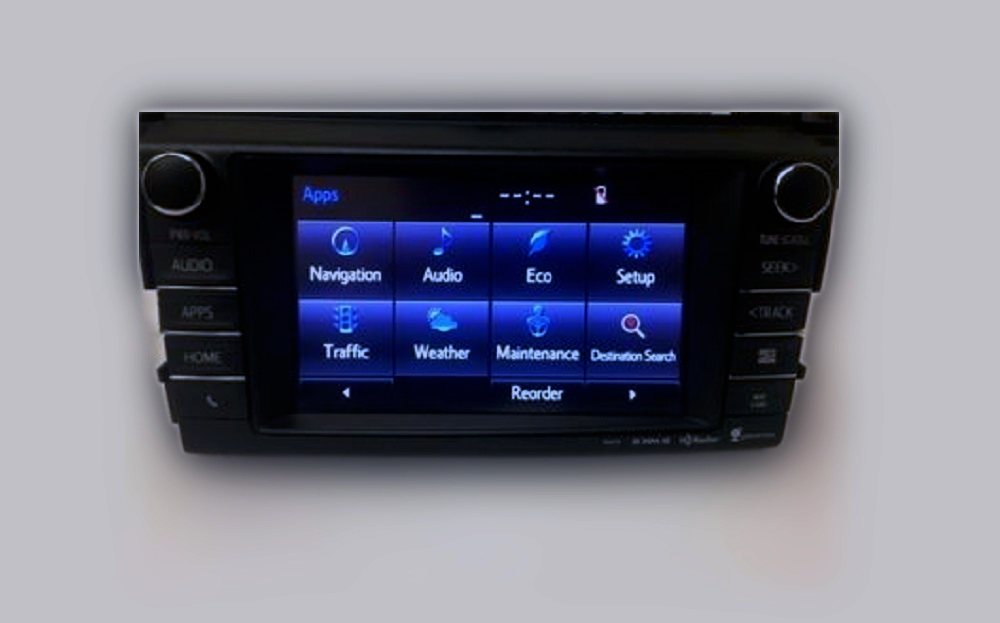
Toyota launched the Entune App back in 2011 as part of its early approach to connected services. It brought navigation, streaming services, and access to vehicle information straight to the infotainment system, letting drivers easily connect their smartphones and use in-car services.
Over time, however, advancements in smartphone and in-car technology revealed Entune’s limitations, as the platform became outdated, slower, and less user-friendly compared to newer applications.
Users reported frequent app crashes, lagging performance, and a complex user interface, signaling that Entune could no longer meet the expectations of modern drivers.
Toyota saw the need for an upgraded system to provide a more seamless, efficient, and comprehensive experience, leading to the discontinuation of Entune and the introduction of the new Toyota App.
This move aims to deliver a more integrated experience with features better suited to today’s technology, offering improved reliability, enhanced options, and better compatibility with current smartphones and operating systems.
How the Change Impacts Toyota Owners
Owners of Toyota models manufactured between 2012 and 2019—including popular models like the Camry, Corolla, RAV4, Highlander, Tacoma, and Tundra—will experience changes in how they access their connected services.
With Entune support ending, features like real-time traffic updates, third-party app integration, and vehicle diagnostics may no longer be available through the old app.
Moreover, since Entune will no longer receive updates, compatibility issues with new smartphone operating systems could arise, leading to app instability or certain features not working as expected.
Toyota has been proactive in notifying affected owners about this transition through email, in-app alerts, and dealership updates, guiding them on how to switch to the new Toyota App.
Why Toyota is Shifting to the New Toyota App
Several key factors drove Toyota’s decision to replace Entune with the new Toyota App:
• Advancements in Technology: Smartphone and in-car technologies have significantly advanced since Entune’s release. Modern drivers expect fast, reliable app integration that Entune struggled to deliver, so Toyota opted for a new platform to keep up with evolving expectations.
• Streamlined User Experience: Toyota’s shift to a single app consolidates all connected services, reducing confusion from multiple apps and delivering a more straightforward experience.
The Toyota App integrates various functions—remote vehicle control, vehicle locator, and service scheduling—within a single, user-friendly application.
• Enhanced Compatibility: The Toyota App is designed to work seamlessly with the latest versions of iOS and Android, ensuring better performance, reliability, and security. Regular updates will also address any issues and add new features.
• Responding to Customer Feedback: Feedback from Entune users pointed to several areas needing improvement, including setup complexity and app stability. Toyota took these insights to heart, creating a new app that tackles these concerns and enhances the user experience.
Compatibility and Changes for Different Toyota Models
For Transitioning Models
Models manufactured from 2018 onward—like the 2018 Camry, 2020 Corolla, 2019 RAV4, and 2020 Highlander—have Entune 3.0 systems with Apple CarPlay and Android Auto support, fully compatible with the Toyota App.
These newer vehicles integrate with modern smartphones easily, allowing owners to enjoy a wide range of apps and services directly on their touchscreen displays.
Older Models and Potential Limitations
Owners of vehicles with Entune 1.0 or Entune 2.0 systems may face more challenges when making the switch. The hardware in these older systems may not be able to handle all the features offered by the Toyota App.
Sometimes, even after downloading the app, certain functions may remain inaccessible due to hardware limitations.
Also, some older models may not support over-the-air updates, requiring a dealership visit for any available software upgrades.
Software Updates and Head Unit Replacement Options
A software update to the infotainment system may enable compatibility with the new Toyota App for certain models. This typically requires visiting a Toyota dealership, where technicians can install the latest software.
However, if software updates aren’t enough, some owners may consider replacing the head unit with one that supports the latest connected features, although this can be a costly investment.
Steps to Transition to the New Toyota App
Here’s a step-by-step guide to switching over to the new Toyota App:
1. Download the Toyota App: Go to the App Store or Google Play Store on your smartphone, search for “Toyota App,” and download it.
2. Create or Log In to Your Account: Log in using your Toyota Owners account credentials. If you don’t have an account, you’ll need to create one with your name, email, and password.
3. Add Your Vehicle: Inside the app, add your vehicle by entering the Vehicle Identification Number (VIN), typically found on your registration documents or near the windshield on the dashboard.
4. Verify Ownership: Complete any verification prompts to confirm you own the vehicle, which may include email confirmation or in-app verification.
5. Pair Your Smartphone with the Vehicle: Enable Bluetooth on your smartphone and go through the pairing process via the infotainment system.
6. Enable Connected Services: Select a subscription plan if necessary, activate it, and accept any terms or privacy agreements.
7. Customize Settings: Adjust notifications, set your preferred dealership for service, and explore the app’s various features to personalize your experience.
Note: If your model requires a software update, schedule an appointment with a Toyota dealership. For older vehicles, some features may remain inaccessible. For technical difficulties, Toyota Customer Support can assist you with troubleshooting and setup.
Alternatives for Owners of Unsupported Models
If your vehicle doesn’t fully support the new Toyota App, you can still stay connected on the road through these options:
• Use Built-In Features: Even without app support, Bluetooth allows hands-free calling and audio streaming, while USB and auxiliary inputs let you play audio from your device.
• Third-Party Apps: Navigation apps like Google Maps or Waze and streaming services such as Spotify or Apple can still be accessed through Bluetooth or auxiliary connections.
• Aftermarket Upgrades: Brands like Pioneer, Kenwood, and Alpine offer aftermarket head units compatible with Apple CarPlay and Android Auto, which can bring modern connectivity features to your Toyota.
• Toyota-Approved Accessories: Check the Toyota Accessory Store for products designed to work with your vehicle, including upgraded head units or navigation systems. Always confirm compatibility with your model before purchasing.
Common Challenges and Troubleshooting During Transition
• App Crashes or Freezes: Ensure your smartphone’s operating system and the Toyota App are updated. If issues persist, restart your device or reinstall the app.
• Connectivity Issues: If pairing problems arise, ensure Bluetooth is enabled on both devices, delete previous pairings, and retry. Resetting network settings on your phone may also help.
• Verification Delays: Double-check account details and confirm a stable internet connection. If problems continue, Toyota Customer Support can help verify your information.
Final Thoughts on Toyota’s Future Connectivity
The end of Entune marks a new chapter in Toyota’s connected services, one designed to align with evolving driver expectations and technological advances.
While adjusting to a new system can be challenging, the new Toyota App offers a more reliable, streamlined, and feature-rich experience that will ultimately enhance your in-car connectivity.
For owners of older models, alternatives like third-party apps or aftermarket upgrades ensure you can still enjoy a connected experience on the road.
Toyota’s move towards an integrated, up-to-date, connected platform reflects its commitment to enhancing the driving experience.
Adopting these advancements lets you stay up-to-date with modern technology, making sure your travels are enjoyable and well-connected.
I have lost my capability of using Google Maps thru my 2017 Highlander. It seemed to disappear on my 1000 mile road trip. It now no longer lets me paly music or any map program thru my radio. I would sure like to know how to make this function for my return home??? I downloaded the Toyota App but there is not connectivity portion to it. Someone needs to create a new program to allow this communication.
Hi Steve,
Sorry to hear about the trouble with your Highlander’s system during your trip—let’s try to get it sorted out! Here’s what you can do:
1. Reconnect Bluetooth: Start by clearing the current connection. In your car’s settings, remove your phone from the Bluetooth devices list. Then, on your phone, go to Bluetooth settings and forget your Highlander. Restart both the car system and your phone, then pair them again.
2. Toyota App Setup: Make sure you have the latest version of the Toyota App downloaded. Log in or create an account, and register your vehicle’s VIN if you haven’t already. Also, check that the app has permission to access Bluetooth and location on your phone.
3. Use a USB Cable: If Bluetooth still won’t cooperate, connect your phone directly to the car using a USB cable. This often restores access to audio and navigation apps like Google Maps.
4. Reset the System: If nothing else works, try resetting the car’s infotainment system. Look for a “System Reset” or “Restore Factory Defaults” option in the settings. Your owner’s manual will have the exact steps if needed.
5. Check for Updates: Visit Toyota’s website to see if there are any software updates for your car. If an update is available, they’ll provide instructions to get it installed.
6. Test Another Device: Try connecting a different phone to your car. If it works, the issue might be specific to your phone’s settings or compatibility.
If none of these steps resolve the issue, it’s a good idea to contact Toyota’s customer support or visit a dealership. They should be able to figure out what’s going on and get everything working again.
Hope this helps, and safe travels!
Hello,,,,,,,had problems last fall (October of 2024) with being sent in the wrong direction. Since we don’t use the GPS that much, just thought it was a bump in the road for the gps. Just now started to check it out, and found this article. Does your Blue tooth resolution work? Are there any more solutions to this? Haven’t talked with Toyota yet.
Thanks,
Don
Hi Don,
Totally hear you—it’s frustrating when your GPS leads you the wrong way, especially when you’re not using it often and don’t catch the issue right away. A lot of Toyota owners ran into similar problems after the Entune app was phased out.
The Bluetooth workaround has helped some people, but the most reliable fix so far has been switching over to the new Toyota app. If you haven’t already, try uninstalling the old Entune app and downloading the “Toyota” app from the App Store or Google Play. It’s meant to replace Entune for most newer models.
If that doesn’t help, a full system reset—clearing out your old Bluetooth connections and re-pairing everything—can sometimes do the trick. If things still feel off, it might be worth checking in with your local Toyota service team to see if there’s a software update or known issue with your system.
Hope it gets sorted out soon!
I have a 2018 Toyota Highlander XLE with the Entune system with Navigation. I am having several issues and I looked for the Toyota Entune Suit but can no longer find that app anywhere. What app has replaced the Entune app. What is the app that I need to have on my iPhone 16 to integrate with my Entune system. Please help.
Hi Lloyd,
Yeah, that’s been tripping a lot of folks up. Toyota quietly dropped the Entune app back in 2023. What you need now is just the regular Toyota app from the App Store. That one took over all the old Entune features. Once you sign in and add your Highlander, it should all sync up. Hopefully it runs smooth from there!
For the last couple of months, an Entune display keeps coming on when I start my 2016 van. How do I deactivate this display?
Thank you in advance.
Verla
2016 AWD Ltd Premium
Hi Verla,
That’s just the old Entune splash screen hanging around. Toyota retired Entune in 2023, so it’s basically just a leftover graphic, nothing’s actually wrong.
Go to Setup → General → Start‑Up Image (or “App Launch”) and switch it off.
If the option’s greyed out, a dealer can update your head unit, and that’ll remove it for good. If you leave it, it won’t hurt anything, it just adds a couple seconds when you start up.
Since you guys are aware the Toyota retired the enTune system on my 2012 Rav4 Limited in 2023, so I lost all function on my info/nav stock head unit since then. Is it a known fact that Bluetooth can no longer function on the stock head unit? The entune app has been replaced by the Toyota app, but I do not see how I would access bluetooth withthe Toyota app.
Thanks,
Jack
Hi Jack,
You didn’t lose Bluetooth, only the Entune app features were retired. Your 2012 Rav4’s stock head unit should still pair with phones over Bluetooth for calls and streaming, completely separate from the Entune app. The new Toyota app doesn’t replace that, it just takes over connected services Entune used to handle. If Bluetooth isn’t working at all, it’s likely a pairing or head-unit issue, not the app shutdown.
I have a 2016 Toyota Highlander Limited that I bought new and 2017 Toyota Prius Prime that I bought used in 2025. I can connect my iPhone to via bluetooth but, I can’t connect/link the Toyota App to the Prius.
The Toyota App doesn’t even give me an option or ability to connect to my vehicles. I’ve downloaded the Toyota Connect application and have tried adding a vehicle to the app and it just keeps saying “Error – an unexpected error has occurred. Please try again later. If the error continues, please contact the Support Desk. [Error Code: 303205021401” Doesn’t provide Support Desk phone number which isn’t helpful.
I want to upgrade my navigation software which is another problem.
I am looking for help as this Entune to Toyota App is a fiasco.
Hi, you’re probably not doing anything wrong.
Bluetooth and the Toyota app are 2 separate things. Your phone can still connect to the car for calls and audio, even if the Toyota app will not link to the vehicle.
The bigger problem is that many older Toyota systems were built around Entune, and Entune was shut down. That means some older cars do not work with the newer Toyota app the way owners expect. So the Prius may still pair by Bluetooth, but not support app linking or connected features in the current app.
That error code usually points to an app or vehicle compatibility problem, not something you set up wrong. In other words, the app may simply not support your Prius the way Toyota once supported it under Entune.
For the navigation update, that is usually a separate issue too. Some older Toyota systems need a different update method depending on the head unit.
Your best move now is to call Toyota support or a Toyota dealer with your VIN and ask 2 direct questions. First, does your exact 2017 Prius Prime work with the current Toyota app. Second, what is the correct way to update navigation on your specific head unit.
So yes, the Entune-to-Toyota-app change has been a mess. Your Bluetooth can still work fine while the app side does not.
I bought a used 4 runner limited 2013
Can I still use the new Toyota app
Yes, you can still download the Toyota app and try adding your 2013 4Runner by VIN. Toyota supports some 2010-and-newer vehicles in the app, but what it can actually do depends on the vehicle and head unit.
Your 2013 4Runner was built around the older Entune setup, and many Entune/Safety Connect features on older Toyota models were affected by the 3G shutdown in 2022. So Bluetooth for calls and audio should still work, but app linking, remote services, vehicle finder, SOS, and other connected features may be limited or unavailable.
Best move is to add the VIN in the Toyota app and see what features it offers. If it won’t link or shows very few options, that’s likely a vehicle compatibility limit, not something you’re doing wrong.